
 Close
Close


Issue
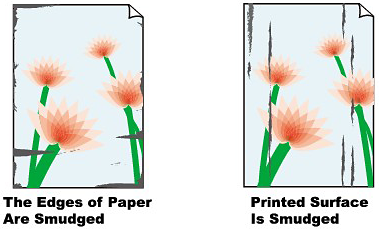
Cause and solution
Check 1: Did you confirm the paper and print quality settings?
Cause and solution
Check 2: Is the appropriate type of paper used? Check the following
-⋗ [ Media Types You Can Use ]
-⋗ [ Printing Area ]
Cause and solution
Check 3: Load the paper after correcting its curl
Turn the paper over and reload it to print on the other side.
Leaving the paper loaded on the Rear Tray for a long time may cause the paper to curl. In this case, load the paper with the other side facing up. It may resolve the problem.
We recommend putting unused paper back into the package and keeping it on a level surface.
If the curl on the four corners of the paper is more than 0.1 inch / 3 mm (A) in height, the paper may be smudged or may not be fed properly. In such cases, follow the procedure described below to correct the paper curl.
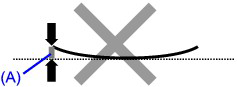
1. Roll up the paper in the opposite direction to the paper curl as shown below.
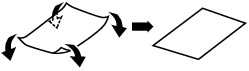
2. Check that the paper is now flat.
We recommend printing curl-corrected paper one sheet at a time.
Caution
Depending on the media type, the paper may be smudged or may not be fed properly even if it is not curled inward. In such cases, follow the procedure described below to curl the paper outward within 0.1 inch / 3 mm (B) in height before printing. This may improve the print result.
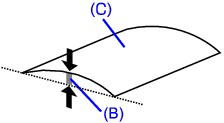
(C) Printing side
We recommend printing paper that has been curled outward one sheet at a time.
Cause and solution
Check 4: If you are printing on thick paper, select the Prevent paper abrasion setting
Selecting the Prevent paper abrasion setting will widen the clearance between the Print Head and the loaded paper. If you notice abrasion even with the media type set correctly to match the loaded paper, set the machine to prevent paper abrasion by using the Operation Panel or the computer.
Print speed may be reduced if you are selecting the Prevent paper abrasion setting.
* Deactivate the Prevent paper abrasion setting once printing is complete. If not, this setting remains enabled for all subsequent print jobs.
Set Prevent abrasion in Print settings under Device settings to ON.

Open the printer driver setup window, and in Custom Settings in the Maintenance sheet, select the Prevent paper abrasion check box, and then click OK.

In the Canon IJ Printer Utility, select Custom Settings in the pop-up menu, select the Prevent paper abrasion check box, and then click Apply.
Cause and solution
Check 5: If the intensity is set high, reduce the Intensity setting in the printer driver and try printing again
If you are using plain paper to print images with high intensity, the paper may absorb too much ink and become wavy, causing paper abrasion.
Reduce the Intensity setting in the printer driver and try printing again.

1.Open the printer driver setup window.
2.On the Main sheet, select Manual for Color/Intensity, and then click Set.
3.Drag the Intensity slide bar on the Color Adjustment sheet to adjust the intensity.

1.Open the Print dialog.
2.Select Color Options in the pop-up menu.
3.Drag the Intensity slide bar to set the intensity.
You can copy in the various methods such as enlarging/reducing or copying two original pages onto a single sheet of paper.
Making Copies
This section describes the procedure to copy a document of A4 size on plain paper.
For the operation, see the notes and operation procedure described in the reference page.
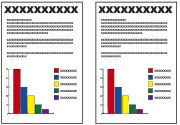
You need to prepare:
Originals to copy.
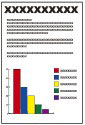
Paper for printing. See [ Media Types You Can Use ]
1. Prepare for copying.
(1) Make sure that the power is turned on.
(2) Press the COPY button.
The copy standby screen will appear.
(3) Load paper.
See [ Loading Paper ]
Here we make sure that A4 plain paper is loaded in the Rear Tray.
(4) Open the Paper Output Tray gently.
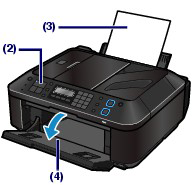
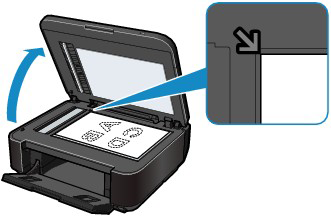
(5) Load an original on the Platen Glass or in the ADF.
To load the original on the Platen Glass, align it with the alignment mark 
Then close the Document Cover gently.
Caution
2. Start copying.
(1) Use the 

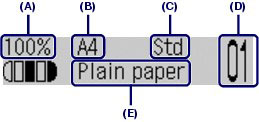
(2) Confirm the page size, media type, and other settings.
Here we confirm that 100% for Enlarge/Reduce (A), A4 for Page size (B), Plain paper for Media type (E), and Std (Standard) for Image quality (C) are specified.
Caution
See [ Changing the Settings ]
(-) or (+) button to select the functions.See [ Using Useful Copy Functions ]
(3) Press the Color button for color copying, or the Black button for black & white copying.
The machine starts copying.
Remove the original on the Platen Glass or the Document Output Slot after copying is completed.
Caution
Caution
You can use the Settings button to change the print settings such as page size, media type, or image quality to print.
Press the Settings button to display the setting items in the following order.
To change the setting, display the desired item and use the
The LCD returns to the copy standby screen when the setting is complete.

- Enlarge/Reduce
Specify the enlargement/reduction manner. You can specify the copy scale by selecting the optional number or the page size: 86% A4 -⋗ B5, 115% B5 -⋗ A4, etc. If you do not want to enlarge/reduce the page size, select 100%.
- Copy intensity
Specify the intensity when you want to make the darkened/lightened copy. You can also set the intensity to automatically adjust according to the original. When Auto adjust (A) is selected, the ADF is not available.
- Page size
Select the page size of the paper to print: A4, Letter, etc.
- Media type
Select the media type of the paper to print: Plain paper, Plus Glossy II, etc.
Caution
- Image quality
Specify the image quality according to the requirements of the original to copy: High, Standard, and Fast. The available image quality options vary depending on the paper selected for Media type.
Caution
Using Useful Copy Functions
You can make various kinds of copies, such as making borderless copies or copying two pages onto a single sheet by selecting Special copy in Copy mode.
This section describes the procedure to select a Special copy menu.
1. Make sure that the machine is turned on.
2. Press the COPY button.
3. Load paper.
4. Load the original document on the Platen Glass or in the ADF.
5. Press the Menu button to display Special copy on the LCD.
6. Use the 
For details, see [ Copy Menu Items ]
Caution
Choose a copy menu according to your purpose.
Frame erase
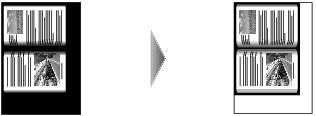
When copying thick originals such as books, you can make a copy without black margins around the image and gutter shadows.
-⋗ [ Copying Thick Originals Such as Books (Frame erase) ]
Borderless copy
You can copy images so that they fill the entire page without borders.
-⋗ [ Copying without Borders (Borderless copy) ]
2-on-1 copy
You can copy two original pages onto a single sheet of paper by reducing each image.
-⋗ [ Copying Two Pages to Fit onto a Single Page (2-on-1 copy) ]
4-on-1 copy
You can copy four original pages onto a single sheet of paper by reducing each image. Four different layouts are available.
-⋗ [ Copying Four Pages to Fit onto a Single Page (4-on-1 copy) ]
Collated copy
You can obtain sorted printouts when making multiple copies of a multi-paged original.
-⋗ [ Making Multiple Copies of an Entire Document (Collated copy) ]
- Copying Thick Originals Such as Books (Frame erase)
When copying thick originals such as books, you can make a copy without black margins around the image and gutter shadows. Using this function, you can reduce unnecessary ink consumption.
Caution
1. Display the Special copy screen.
-⋗ [ How to Select a Copy Menu ]
2. Use the
3. Use the 
Change the print settings as necessary.
4. Press the Color button for color copying, or the Black button for black & white copying.
The machine starts copying.
Caution
- Copying without Borders (Borderless copy)
You can copy images so that they fill the entire page without borders.

Caution
1. Display the Special copy screen.
-⋗ [ How to Select a Copy Menu ]
2. Use the
If a page size setting or a media type setting that cannot be used in borderless copying is selected, the LCD displays the following message.

(1) Use the
(2) Use the
3. Use the
Change the print settings as necessary.
4. Press the Color button for color copying, or the Black button for black & white copying.
The machine starts borderless copying.
Caution
- Copying Two Pages to Fit onto a Single Page (2-on-1 copy)
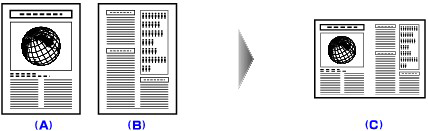
You can copy two original pages (A) (B) onto a single sheet of paper (C) by reducing each image.
1. Display the Special copy screen.
-⋗ [ How to Select a Copy Menu ]
2. Use the
If a page size setting or a media type setting that cannot be used in 2-on-1 copying is selected, the LCD displays the following message.

(1) Use the
(2) Use the
3. Use the
Change the print settings as necessary.
4. Press the Color button for color copying, or the Black button for black & white copying.
When the machine finishes scanning the first document, the message below is displayed.

If you have the next sheet of document to scan, load it on the Platen Glass and press the OK button. The machine starts copying.
If you do not need more scanning, press the 
Caution
The machine starts scanning the next sheet of document automatically after one sheet of document finishes being scanned.
Caution
- Copying Four Pages to Fit onto a Single Page (4-on-1 copy)
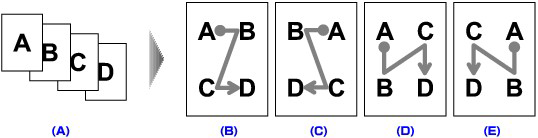
(A) Originals
(B) Layout 1
(C) Layout 2
(D) Layout 3
(E) Layout 4
1. Display the Special copy screen.
-⋗ [ How to Select a Copy Menu ]
2. Use the
3. Use the
You can select Layout 1, Layout 2, Layout 3, or Layout 4.
If a page size setting or a media type setting that cannot be used in 4-on-1 copying is selected, the LCD displays the following message.
(1) Use the
(2) Use the
4. Use the
Change the print settings as necessary.
5. Press the Color button for color copying, or the Black button for black & white copying.
When the machine finishes scanning each sheet from the first to the third document, the message below is displayed.
If you have the next sheet of document to scan, load it on the Platen Glass and press the OK button. The machine starts copying.
If you do not need more scanning, press the
Caution
The machine starts scanning the next sheet of document automatically after one sheet of document finishes being scanned.
Caution
- Making Multiple Copies of an Entire Document (Collated copy)
You can obtain sorted printouts when making multiple copies of a multi-paged original.
- Collated copy selected.
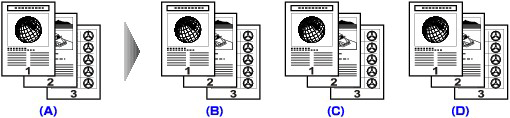
(A) Originals
(B) Copy 1
(C) Copy 2
(D) Copy 3
- Collated copy not selected.
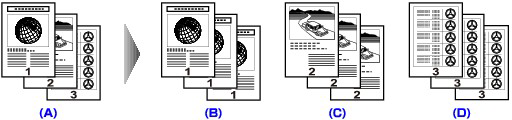
(A) Originals
(B) Copy 1
(C) Copy 2
(D) Copy 3
Caution
1. Display the Special copy screen.
-⋗ [ How to Select a Copy Menu ]
2. Use the
3. Use the
Change the print settings as necessary.
4. Press the Color button for color copying, or the Black button for black & white copying.
Caution
Cause and solution
Check 6: Is printing performed beyond the recommended printing area?
If you are printing beyond the recommended printing area of your printing paper, the lower edge of the paper may become stained with ink.
Resize your original document in your application software.
To ensure the best print quality, the machine allows a margin along each edge of media. The actual printable area will be the area inside these margins.
Recommended printing area 
Printable area 
However, printing in this area can affect the print quality or the paper feed precision.
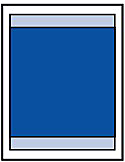
Caution
Borderless Printing
- By selecting Borderless Printing option, you can make prints with no margins.
- When performing Borderless Printing, slight cropping may occur at the edges since the printed image is enlarged to fill the whole page.
- Duplex printing is not available when performing Borderless Printing.
- For Borderless Printing, use the following paper:
Performing Borderless Printing on any other type of paper may substantially reduce printing quality and/or result in printouts with altered color hues.
Borderless Printing on plain paper may result in printouts with reduced quality. Use them only for test printing. You can perform Borderless Printing on plain paper only when printing from your computer.
- Borderless Printing is not available for A5, B5, Legal-sized paper, or envelopes.
- Depending on the type of paper, Borderless Printing may reduce the print quality at the top and bottom edges of the paper or cause these parts to become smudged.
In Borderless Copying, you can specify the amount of extension by Extended copy amt. in Print settings.
Letter, Legal
| Size | Printable Area (width x height) |
| Letter | 8.00 x 10.69 inches / 203.2 x 271.4 mm |
| Legal | 8.00 x 13.69 inches / 203.2 x 347.6 mm |
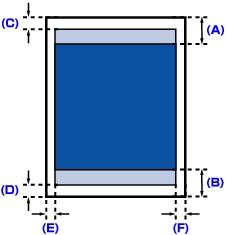
A. 1.23 inches / 31.2 mm
B. 1.28 inches / 32.5 mm
C. 0.12 inches / 3.0 mm
D. 0.20 inches / 5.0 mm
E. 0.25 inches / 6.4 mm
F. 0.25 inches / 6.3 mm
Envelopes
| Size | Recommended Printing Area (width x height) |
| European DL* | 4.06 x 7.07 inches / 103.2 x 179.5 mm |
| US Comm. Env. #10* | 3.86 x 7.91 inches / 98.0 x 200.8 mm |
* This page size can be used only when printing from your computer.
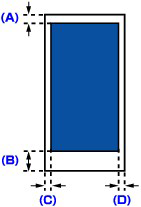
A. 0.32 inches / 8.0 mm
B. 1.28 inches / 32.5 mm
C. 0.13 inches / 3.4 mm
D. 0.13 inches / 3.4 mm
Other Sizes than Letter, Legal, Envelopes
| Size | Printable Area (width x height) |
| A5 | 5.56 x 7.95 inches / 141.2 x 202.0 mm |
| A4 | 8.00 x 11.38 inches / 203.2 x 289.0 mm |
| B5 | 6.90 x 9.80 inches / 175.2 x 249.0 mm |
| 4" x 6" / 10 x 15 cm | 3.73 x 5.69 inches / 94.8 x 144.4 mm |
| 4" x 8" / 10 x 20 cm* | 3.73 x 7.69 inches / 94.8 x 195.2 mm |
| 5" x 7" / 13 x 18 cm | 4.73 x 6.69 inches / 120.2 x 169.8 mm |
| 8" x 10" / 20 x 25 cm | 7.73 x 9.69 inches / 196.4 x 246.0 mm |
| Wide | 3.73 x 6.80 inches / 94.8 x 172.6 mm |
* This page size can be used only when printing from your computer.
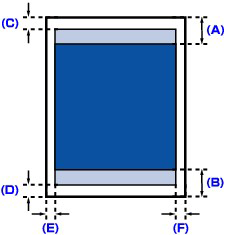
A. 1.23 inches / 31.2 mm
B. 1.28 inches / 32.5 mm
C. 0.12 inches / 3.0 mm
D. 0.20 inches / 5.0 mm
E. 0.13 inches / 3.4 mm
F. 0.13 inches / 3.4 mm
Cause and solution
Check 7: Is the Platen Glass or the glass of ADF dirty?
Clean the Platen Glass or the glass of ADF.
Caution
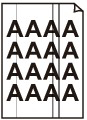
Caution
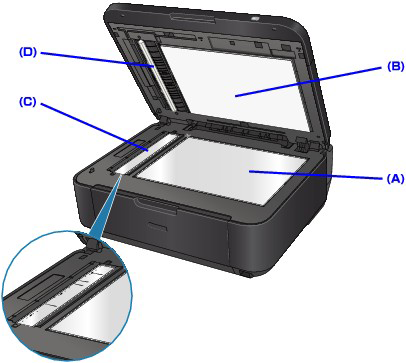
With a clean, soft, lint-free cloth, wipe the Platen Glass (A), the inner side of the Document Cover (white sheet) (B), the glass of the ADF (C), and the inner side of the ADF (white area) (D) gently. Be sure not to leave any residue, especially on the Platen Glass.
Caution
Cause and solution
Check 8: Is the Paper Feed Roller dirty?
Clean the Paper Feed Roller.
Caution
If the Paper Feed Roller is dirty or paper powder is attached to it, paper may not be fed properly.
In this case, clean the Paper Feed Roller. Cleaning will wear out the Paper Feed Roller, so perform this only when necessary.
You need to prepare: three sheets of A4 or Letter-sized plain paper
1. Make sure that the power is turned on, and remove any paper in the Rear Tray.
2. Open the Paper Output Tray gently.
3. Clean the Paper Feed Roller without paper.
(1) Press the Menu button repeatedly until Maintenance appears.
(2) Use the 


The Paper Feed Roller will rotate as it is cleaned.
4. Clean the Paper Feed Roller with paper.
(1) Make sure that the Paper Feed Roller stops rotating, and load three or more sheets of A4 or Letter-sized plain paper in the Rear Tray.
(2) Repeat the procedures in step 3.
The machine starts cleaning. The cleaning will be completed after the paper is ejected.
If the problem is not resolved after cleaning the Paper Feed Roller, contact the service center.
Cause and solution
Check 9: Is the inside of the machine dirty?
When performing duplex printing, the inside of the machine may become stained with ink, causing the printout to become smudged.
Perform the Bottom Plate Cleaning to clean the inside of the machine.
Caution
Cleaning the Inside of the Machine (Bottom Plate Cleaning)
This section explains how to clean the inside of the machine. If the inside of the machine becomes dirty, printed paper may get dirty, so we recommend performing cleaning regularly.
Caution
1. Make sure that the machine is turned on.
2. Open the Paper Output Tray gently.
3. Remove any paper from the Rear Tray.
4. Fold a single sheet of A4 or Letter-sized plain paper in half widthwise, then unfold the paper.
5. Load this and only this sheet of paper on the Rear Tray with the open side facing to the front.
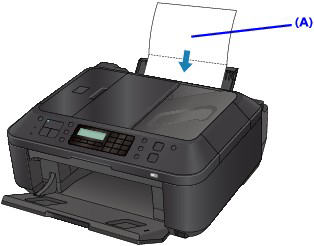
(A) Load the paper after unfolding it.
6. Press the Menu button repeatedly until Maintenance appears.
7. Use the 

The paper cleans the inside of the machine as it feeds through the machine.
Check the folded part of the ejected paper. If it is smudged with ink, perform Bottom Plate Cleaning again.
If the problem is not resolved after performing cleaning again, the protrusions inside the machine may be stained. Clean them according to instructions.
-⋗ [ Cleaning the Protrusions inside the Machine ]
Caution
Cleaning the Protrusions inside the Machine
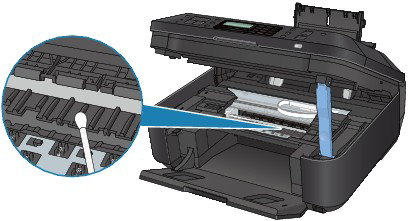
If protrusions inside the machine are stained, wipe off any ink from the protrusions using a cotton swab or the like.
Caution
Cause and solution
Check 10: Set Ink Drying Wait Time longer
Doing so gives the printed surface enough time to dry so that paper smudged and scratched are prevented.
1. Make sure that the machine is turned on.
2. Open the printer driver setup window.
3. Click the Maintenance tab and then Custom Settings.
4. Drag the Ink Drying Wait Time slide bar to set the wait time, and then click OK.
5. Confirm the message and click OK.
1.Make sure that the machine is turned on.
2.Open the Canon IJ Printer Utility.
3.Select Custom Settings in the pop-up menu.
4.Drag the Ink Drying Wait Time slide bar to set the wait time, and then click Apply.
5.Confirm the message and click OK.
Cause and solution
Check 11: Is the paper scratched by other loaded paper?
Depending on the media type, the paper may be scratched by other loaded paper when feeding from the Rear Tray. In this case, load one sheet at a time.